How I Made an Animated Video With Claude: Script to Final Cut

The short answer: I made a 44-second animated video without opening an editing app. I wrote the script, gave Claude a visual idea for every line, refined the storyboard it made, hit animate and added the voiceover. Then I resized it into a horizontal version for LinkedIn.
The video is a conversation. I ask Claude what it says to video editors who are afraid of it, and it answers in motion graphics. Here's the process, step by step.
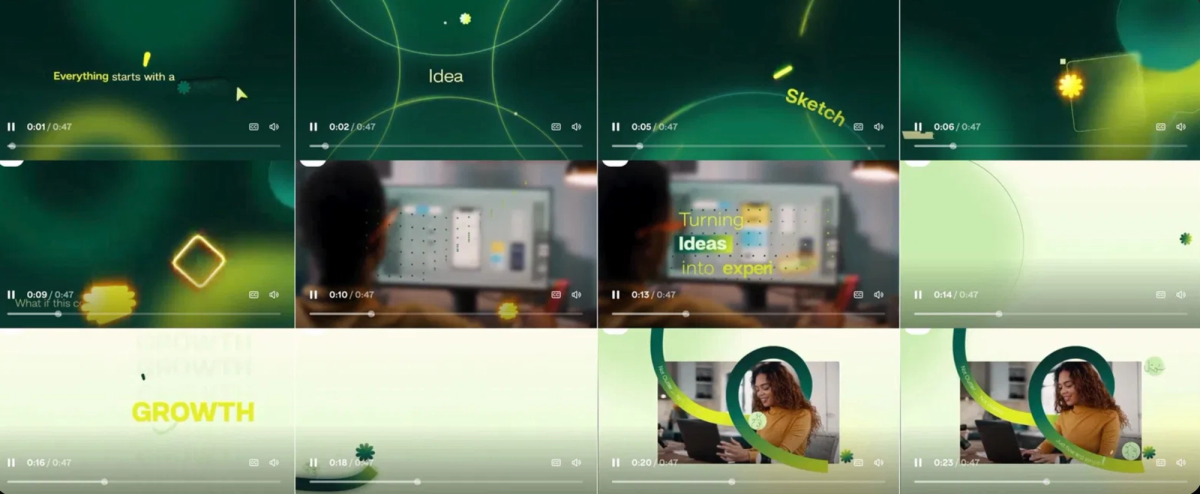
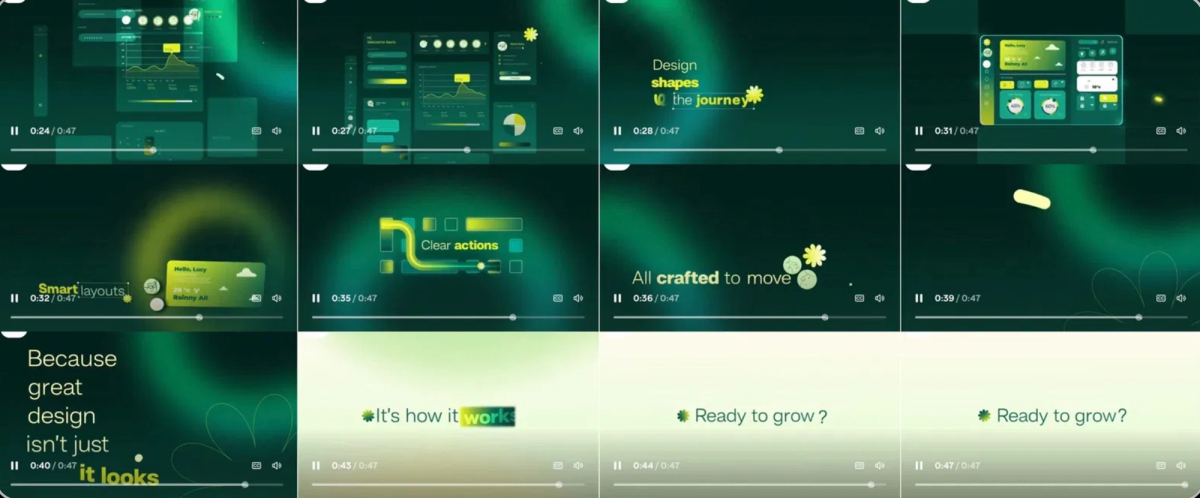
[IMAGE: reel_screens_9x16.png | Alt: Screens from the finished reel, made entirely with Claude]
Step 1: Write the script
Keep it short and write in beats: one idea per sentence, so every line can become its own screen. This is the script I used, with two voices, mine and Claude's.
Me: Video editors are scared of Claude. So I asked it. Be honest. What do you say to video editors who are afraid of you?
Claude: Fair question. I can cut in any style, animate anything, and give you fifty versions before lunch. Knowing the software isn't the edge anymore. But here's what I can't do. I've never sat across from a client. I can't hear what they don't say. And when the work goes out, my name isn't on it. Taste. Story. Trust. That part is still yours. So stop racing me. Direct me. One editor. A whole team's output.
Me: Every cut in this video was made by Claude. I just gave the directions.
Step 2: Give Claude the script
Paste the script into Claude along with your brand assets (your logo, your colours and your font) and a reference video in the style you want. Thirty seconds of motion design you like says more than a paragraph of adjectives. Ask for a vertical 9:16 animated video, with the text kept inside the Instagram safe area.
The prompt:
Here's my script for a short animated video: [paste script]
Design a storyboard for it as a vertical 9:16 (1080×1920) animated video. I'll review it before anything gets animated.
Style: Match the style of the attached reference video. Use the colour palette from the attached screenshot, and [font name] for all text. Use the attached logo as an element that travels from screen to screen: it can grow, shrink, pop out of a dot or sit faintly in the background. Use kinetic typography and simple infographics, not just text on a background.
Rules: One idea per screen. If a sentence has two ideas, split it into two screens. Keep all text inside the Instagram safe area; graphics can bleed outside it.
Why it works: you set the look once, before any screens exist. The reference video, palette, font and rules do the work that a paragraph of adjectives can't.
Step 3: Give every line a visual idea
Break the script down so that every line has its own visual. This is the part that has to come from you, because it's where the direction comes from. Claude can animate anything, but the idea behind each screen should be yours.
For each line, tell Claude what you want to see and how it should move. A simple test: ask yourself what the line would look like with no text at all.
The prompt:
Now let's direct each screen. Here's the visual I want for each line:
1. "[line from the script]": [what we see on screen and how it moves] 2. "[line]": [what we see and how it moves] 3. …continue for every line.
For any line where I haven't given an idea, suggest two options and I'll pick one. Update the storyboard so every screen shows its voiceover line, what's on screen, the motion and the sound.
A few of the visual ideas I gave:
- "Scared": the word shakes in fear, as kinetic typography.
- "Fifty versions before lunch": fifty video cards fill the background while a burger gets eaten bite by bite.
- "Here's what I can't do": the logo cracks in half.
- "I've never sat across from a client": the robot stuck behind a brick wall, with the client's table on the other side.
- "Trust": the letters do a trust fall.
Why it works: this step is the direction. Claude can animate anything, but the idea has to come from you.
Step 4: Review and refine the storyboard
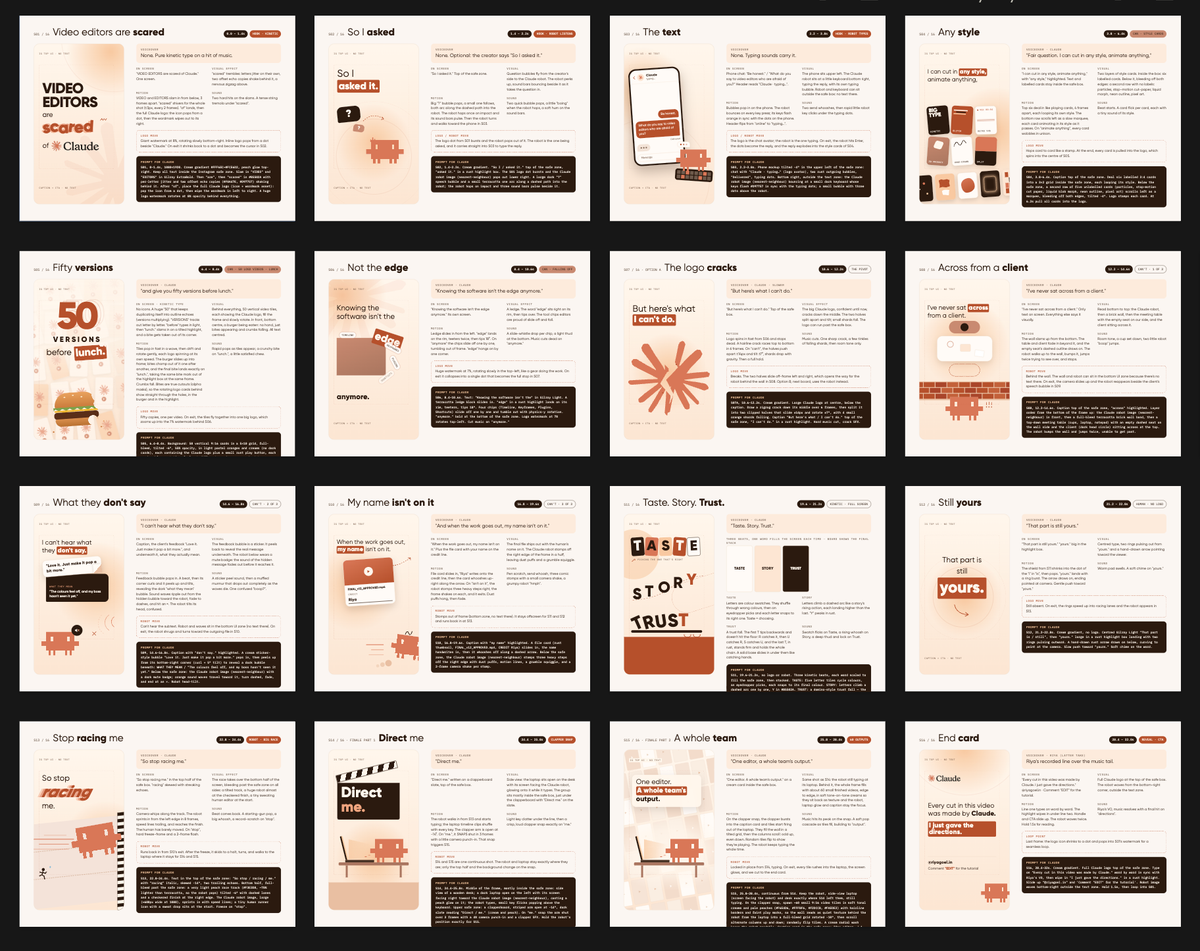
From your script and visual ideas, Claude creates a storyboard: every screen laid out, with notes on the animation for each one. If anything needs changing, ask for the edits here. Changing a storyboard frame takes a minute; changing a finished video means a full re-render.
Step 5: Animate and add the voiceover
Once the storyboard is right, ask Claude to animate it. Add your voiceover: I recorded my lines on my phone and generated Claude's voice in ElevenLabs. Claude times every screen to the audio and renders the final video.
The prompt:
The storyboard is final. Animate it into a 1080×1920 MP4 at 30fps.
Voiceover: I've attached my own recorded lines for [which screens, e.g. the opening and the end card]. Generate the remaining lines in ElevenLabs in a calm, warm voice, with a pause between lines so each one gets its own screen. Voiceover only, no background music.
Time every screen to the line being spoken. Before you send it, check the frames for gaps, overlapping elements and text outside the safe area.
Why it works: the voiceover sets the timing, so it goes in before the final render, not after. Asking Claude to check its own frames catches mistakes before you see them.
Step 6: Resize it for LinkedIn
For LinkedIn I resized the video into a horizontal 16:9 layout. That isn't a crop: a vertical screen stacks things top to bottom, while a horizontal one has room to put them side by side. So I asked Claude to re-lay out every frame and show me a board of them before animating anything.
The prompt:
Now resize this video to a horizontal 16:9 (1920×1080) version for LinkedIn. Don't just crop it. Re-lay out each screen for the wider format as you see fit. Share a board of all the re-laid-out screens first, and once I approve it, animate it with the same voiceover and timing.
Most screens ended up with the words on the left and the visual on the right, so they read left to right. The timing and voiceover stayed the same, so both versions come from one edit.
Why it works: seeing the board before animating means you fix the layout cheaply instead of re-rendering.
That's the whole process. The finished reel is on Instagram at @riyagoel.in. If you make your own version, tag me. I'd love to see how you direct it.
Quick summary · key points
- ✓Step 1: Write the script
- ✓Step 2: Give Claude the script
- ✓Step 3: Give every line a visual idea
- ✓Step 4: Review and refine the storyboard
- ✓Step 5: Animate and add the voiceover
- ✓Step 6: Resize it for LinkedIn