How to Use Claude: 5 Features to Set Up First, From Skills to Chrome
If you are new to Claude, set up five features first: a reusable skill, a scheduled task, an artifact, a plugin and the Claude in Chrome extension. Skills and artifacts work on every plan, including Free. The other three need a paid plan. Each section shows where to click and gives a starter prompt.
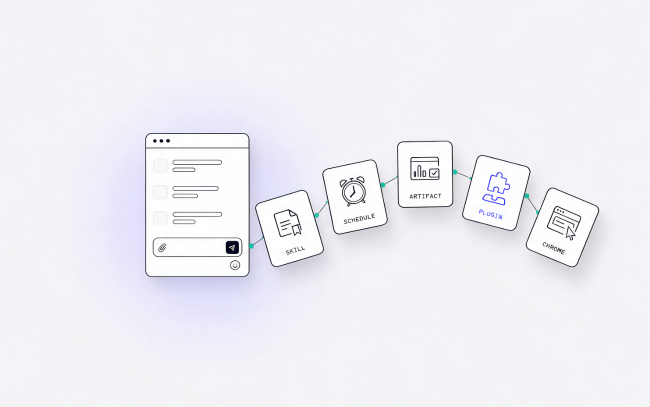
The short answer: if you pay for Claude and only chat with it, set up five Claude features: a reusable skill, a scheduled task, an artifact, a plugin and the Claude in Chrome extension. Skills and artifacts work on every plan, Free included. The other three need Pro or higher. Each one below comes with exact clicks and a prompt you can paste.
Most people open Claude, type a question, read the answer and close the tab. That works, but it leaves most of the subscription unused. The five Claude features below turn it from something you ask into something that works for you: it remembers how you like a job done, runs tasks on a timer, builds small tools, plugs into your apps and acts inside your browser.
Give yourself one afternoon. Each section explains the feature in a line, shows where to click and hands you a starter prompt to paste into Claude. The prompts have square brackets for your details, and in most cases Claude will ask you to fill them in.
Two things to check before you set up any Claude features
Which layout you have. Anthropic is merging Chat and Cowork into one home for Pro and Max users. Cowork is Claude's mode for longer tasks that run on their own and produce finished files. If your message box still shows separate Chat and Cowork buttons, you are on the older layout, and we flag where its steps differ. If it does not, you can ask for everything below from any conversation.
One toggle. Go to Settings → Capabilities and turn on Code execution and file creation. Skills do not work without it, and Claude needs it to make files such as slide decks.
1. Create one reusable skill
What it is. A skill is a saved set of instructions that Claude pulls in on its own whenever a task matches, so the output follows the same structure, style and checks every time. Think of it as a standing brief you write once.
Pick the right first skill. Choose something you make every week. For anyone on Instagram or LinkedIn, that is usually a carousel, so our starter below is a Carousel Builder.
Browse ready-made skills. In the left sidebar open Customize → Skills, then the Discover tab. Click Add on any that match your work. Anthropic's own skills for Word, Excel, PowerPoint and PDF files are a good place to start.
Make your own. Copy the skill below. The square brackets are placeholders, and the first time it runs, Claude interviews you to fill them in.
---name: carousel-builderdescription: Builds Instagram and LinkedIn carousels in my fixed structure, look and voice. Use whenever I ask for a carousel, a swipe post, slides for social, or to turn something into a carousel.---# Carousel Builder
## First run: fill in my details
If any [bracket] below is still empty, stop and interview me before making anything. Ask one question at a time, 8 questions at most, and offer 2 or 3 sample answers with each so I can just pick one. When we finish, rewrite this skill with my answers filled in and save it to my skills. If you cannot save it, give me the finished file to download.
## Who my carousels are for
My business and role: [e.g. real estate agency in Pune]. Who reads them: [home buyers, founders, students]. What they should do after the last slide: [save it, comment a keyword, DM me, visit a link].
## My structure (use every time unless I say otherwise)
1. Cover slide: one hook line, under 10 words.
2. The problem, in the reader's own words.
3. Three to six core slides, one idea each.
4. Proof: a number, an example or a short quote.
5. Last slide: one clear call to action.
Default length: [7 to 10] slides. Size: [1080 x 1350, 4:5 portrait].
## Style rules
Brand colours: [hex codes]. Fonts: [heading / body]. Handle or logo: [where, or "none"].
Every headline states the takeaway ("Site visits doubled after we added the price"), never a label ("Results").
Max [25] words per slide. Need more? Split the slide.
One visual per slide: an icon, a photo, a chart or one big number.
Write the caption too, in my voice: [plain, warm, direct], ending with the same call to action.
Never: [walls of text, stock handshake photos, more than two fonts].
## How to work
1. If the goal, reader or call to action is unclear, ask up to 3 quick questions. If I gave you enough, skip them.
2. Show a one-line plan per slide first. Wait for my "go" unless I said "just make it".
3. Build the carousel as a PDF or an editable PowerPoint (.pptx), one slide per page, at the size above.
4. Before handing it over, check: the hook is under 10 words, no slide breaks the word limit, every number matches my source, and the call to action slide is there.
5. Hand it back with 3 lines: what is in it, anything you assumed, and what I should double-check.
## Sources
I might give you notes, a blog link, a transcript or a messy brain dump. Use facts only from what I give you or what you can verify. Label anything you assumed. Never invent numbers or quotes.
## Examples
Me: "Turn this blog post into a carousel." You: the slide plan first, then the full carousel and caption.
Me: "Give me a 5-slide version of last week's post." You: cut to 5 slides, keep takeaway headlines, move the detail into the caption.
Set it up the quick way. Paste the whole skill into a new Claude conversation and add one line: Interview me to fill in the brackets, then save this as a skill. That takes about a minute.
Set it up the keep-forever way. Save the text as a file named SKILL.md, put it in a folder called carousel-builder and zip that folder. A zip is simply a compressed bundle of a folder. Then go to Customize → Skills → + → Create skill → Upload a skill.
Check it works. Ask for a carousel the way you normally would. If you see "Using carousel-builder" in Claude's thinking, the skill has kicked in.
2. Set up a scheduled task
What it is. A scheduled task is a prompt Claude runs on a timer, without you asking again. It runs in Anthropic's cloud, so it still happens while your laptop is shut. The most useful first one is a morning brief waiting for you at 8 a.m.
Connect your sources first. Open Customize → Connectors and add Gmail and Google Calendar, or Microsoft 365 if your work lives there. A connector is a secure link that lets Claude read from one of your apps.
New layout. Paste the prompt below into any conversation, answer Claude's follow-up questions, review what it proposes and click Schedule.
Older layout. Switch to Cowork, click Scheduled in the left sidebar, then New task, then Create with Claude, and paste the prompt. If you prefer a form, choose Set up manually and fill in the name, prompt, approval mode and how often it runs: hourly, daily, weekly, weekdays or manually.
Run it once today. On the Scheduled page, run the task on demand and fix anything that looks off, so tomorrow's 8 a.m. brief is already right.
Every weekday at 8:00 AM [my time zone, e.g. IST], prepare my morning brief.
SOURCES: Use Gmail, Google Calendar and [Slack / a Google Drive folder] if connected. If a source is not connected, say so in one line and carry on.
BUILD IT IN THIS ORDER:
1. URGENT (only if something qualifies): a failed payment, a security alert, a legal or contract issue, or an unhappy client. Put it at the very top.
2. TODAY: every meeting with its time, who is in it, and one line on what I should prepare. Flag double bookings and meetings with no agenda.
3. NEEDS A REPLY TODAY: emails from the last 24 hours that ask me a direct question, carry a deadline in the next 48 hours, or come from [my VIP list: names or domains]. For each, give the sender, a one-line summary and a one-sentence suggested reply. Max 7.
4. WAITING ON OTHERS: threads where I asked something and have had no reply for 3 days or more.
5. FYI: anything else worth knowing, max 5 bullets.
6. ONE THING: the single most important task for today, and why, in one sentence.
SKIP: newsletters, receipts, promotions, social notifications and automated alerts, unless they are urgent under point 1.
RULES: Under 300 words. Bullets only. Start with the first section and stop after the last. Read only: never send, reply, archive, label or delete anything. If a section is empty, write "Nothing today" so I know you checked. Do not guess; if something is unclear, mark it "(check this)". On Mondays, add a line with my 3 biggest deadlines for the week.
3. Build an artifact
What it is. An artifact is a small working tool, such as a tracker, a calculator or a dashboard, that Claude builds and opens beside your chat. You can use it straight away, come back to it later or share it with a link.
A first one that pays for itself. A credit card benefits tracker. Most of us carry two or three cards with lounge visits, vouchers and milestone rewards we forget to claim. Paste this prompt and Claude researches your cards, then builds the tracker.
Build me an interactive artifact: a credit card benefits tracker.
STEP 1, RESEARCH: My cards: [e.g. HDFC Infinia, Axis Atlas, SBI Cashback]. Search the web for each card's CURRENT recurring benefits: lounge visits, milestone rewards, vouchers, fee waivers, cashback caps, insurance and similar. For each benefit, capture its name, value in rupees, how often it resets (monthly, quarterly, half-yearly, yearly or on the card anniversary) and how to activate or use it. Give me the source link for each card. If you cannot confirm a benefit is still offered, mark it "verify" instead of guessing.
STEP 2, BUILD THE TRACKER: One section per card and one row per benefit, showing name, value, reset period, next reset date and a "used" checkbox. Let me log partial use (e.g. 2 of 4 lounge visits this quarter). Add a dashboard at the top with total benefit value per year, value used so far and value left unclaimed. Add an "Expiring soon" panel listing unused benefits that reset in the next 30 days, sorted by value. Put a "How to use it" note on each benefit. Let me add, edit or delete cards and benefits by hand, and set my card anniversary dates.
STEP 3, KEEP IT PERSONAL AND SAFE: Save my entries so they are still there when I come back, private to me. If saving is not available, add Export and Import buttons (JSON) instead. Never ask for card numbers, CVVs, OTPs or logins. Card names only.
DESIGN: Clean and phone-friendly. Big numbers on the dashboard, green for used, red for expiring soon. No clutter.
When it is built, walk me through it in 3 bullets and tell me the one benefit I am most likely wasting right now.
JSON, in that prompt, is just a plain text file format. It lets you download your entries and load them back in if the tracker cannot save on its own.
To share it. Open the artifact, click Share, choose Anyone with the link under who has access, and copy the link. Older chat artifacts show a Publish button instead; click it and copy that link.
Who can open it. People need to be signed in to a Claude account, a free one is enough, to open an artifact shared with Anyone with the link. Older published artifacts open without one. Artifacts that connect to your apps or call Claude cannot use Anyone with the link at all, and sharing settings can only be changed on the web or desktop app.
4. Add a plugin
What it is. A plugin bundles the skills and connectors for one kind of work into a single install. Instead of setting up a CRM link and five sales skills one by one, you add the Sales plugin and they arrive together. Plugins need a paid plan.
Install it. Open Customize in the left sidebar and click the Plugins tab. On the older layout, open the Cowork tab first. Open Discover, pick a plugin and click Add. Then type / or click + in the message box to see the new skills, and give it a real task from your week.
Which one to add first. These come from Anthropic's own open set of plugins:
Productivity: tasks, calendars and daily workflows. The safe default for almost anyone.
Marketing: content, campaigns, brand voice and competitor briefs. Useful for creators and small business owners.
Sales: prospect research, call prep, pipeline reviews and outreach drafts, with connectors for CRMs such as HubSpot and Close.
Data: analyse spreadsheets, write SQL (the language databases are queried in) and build dashboards.
Install one at a time. Anthropic warns that a plugin can include local tools that run on your computer with the same permissions as any other program you install. Stick to Anthropic and partners you trust, and use one plugin for a week before adding a second, so you can tell what is actually helping.
5. Install the Claude in Chrome extension
What it is. Claude in Chrome puts Claude in a side panel while you browse. It can see the page and click, type and fill in forms for you. It needs a paid plan and works in Google Chrome only, not other Chromium browsers such as Edge or Brave, and not on mobile.
Step 1. In Chrome, open the Claude listing on the Chrome Web Store and check that the publisher is Anthropic.
Step 2. Click Add to Chrome and sign in with your Claude account.
Step 3. Click the puzzle piece icon in the toolbar, then the pin next to Claude so it stays visible.
Step 4. Grant the permissions it asks for, then click the Claude icon to open the side panel.
Step 5. In the drop-down on the chat box, switch to Manually approve for your first few tasks, so you see every action before it happens. The default, Automatically approve, safety-checks each step and pauses only when needed. Never choose Skip all approvals.
Where it earns its keep. Job applications, logging call notes into your CRM and booking things. For a job form, open the application page and paste this into the side panel:
Help me fill in the job application on this tab.
ABOUT ME: [Paste your resume text here.] Target role: [title]. Location and work setup: [city / remote / hybrid]. Notice period: [e.g. 30 days].
HOW TO WORK:
1. Read the whole form first, including every page or step. List the fields you will fill, the fields you need me for, and any question you are unsure about.
2. Fill the standard fields exactly as written in my resume: name, contact details, work history, dates and education.
3. For open-ended questions ("Why do you want this role?"), read the job description on this page and draft an answer in plain, warm, confident language, under 150 words, using only real details from my resume. Show me each draft in the chat before typing it in.
4. For dropdowns and checkboxes, pick the option that matches my details. If none clearly matches, ask me.
NEVER: Never click Submit, Apply or anything final; stop and tell me it is ready for my review. Never enter my Aadhaar, PAN, date of birth, bank details, current salary or passwords; leave those for me. Never answer optional diversity or demographic questions. Never create an account or accept terms for me. Never invent skills, titles, dates or degrees.
WHEN YOU ARE DONE: Give me a short checklist of fields filled, fields left for me, and anything I should double-check before I submit.
It sees what you see. The extension takes screenshots of the tabs it works in, so anything visible becomes part of the chat. Close sensitive tabs before you start.
Payments stay with you. Claude asks before going onto financial sites and is blocked from trading stocks or entering sensitive data. For bookings, let it search and fill in the details, then pay yourself.
Watch for odd behaviour. A web page can hide instructions meant to hijack an AI assistant, a trick called prompt injection. If Claude suddenly heads somewhere unexpected or asks for private information, stop the task. Anthropic also suggests a separate Chrome profile without your banking or health accounts. The full rules are in Anthropic's guide to using Claude in Chrome safely.
Common mistakes when setting up Claude features in 2026
Skipping the code execution toggle. If a skill never seems to kick in, check Settings → Capabilities first.
Writing a skill for a one-off job. Skills pay off on work you repeat. A carousel, a weekly report or a proposal format will save hours; a one-time task will not.
Trusting the first scheduled run blindly. A brief that misses your VIP clients on day one will miss them every day. Run it on demand, read it properly and tighten the prompt.
Sharing a tracker with your own data in it. Some artifacts store entries that every viewer sees. Before you send one, ask Claude for a clean copy with your details removed.
Installing five plugins at once. You lose track of which one is doing what, and every extra install is another set of permissions on your machine.
Frequently asked questions
Which of these Claude features work on the free plan?
Skills and artifacts work on every plan, including Free. Scheduled tasks, plugins and Claude in Chrome need a paid plan: Pro, Max, Team or Enterprise.
Do scheduled tasks run when my laptop is off?
Yes. Scheduled tasks run in Anthropic's cloud on the timing you choose, so they run even when your computer is asleep or the Claude app is closed.
What is the difference between a skill and a plugin?
A skill is one set of instructions for one kind of task. A plugin is a bundle: several skills plus the connectors to the apps they need, installed in one go for a whole job function such as sales or marketing.
Can I make a skill without writing it myself?
Yes. Describe the task you repeat and ask Claude to turn it into a skill. It will ask you questions, draft the instructions and save the skill for you, much like the first-run interview in our Carousel Builder.
Does Claude in Chrome work on Edge, Brave or my phone?
No. It runs in Google Chrome on a computer only. It does not support other Chromium-based browsers or mobile yet. Want all five ready to paste in one file, with the skill, the morning brief, the tracker and the job form prompts? Comment TOOLKIT on the reel and we'll send it over. In short: the Claude subscription earns its money once you stop using it as a chatbot. A skill makes your repeat work come out the same way every time, a scheduled task delivers a morning brief at 8 a.m. without being asked, an artifact gives you a small tool you can share, a plugin installs a whole job's skills and app connections in one go, and Claude in Chrome fills in forms on the page you are looking at. Skills and artifacts are free; the rest need Pro or higher. Set up one this week, use it properly, then add the next.